A 5-Minute Tour of Deep Code
We've already covered how to install Deep Code in under three minutes. Now let's see what it actually looks like in action. This walkthrough follows a real task from start to finish and shows you how to read everything Deep Code puts on screen.
Plenty of AI tools can spit out a flashy landing page from a one-liner — a neat party trick, but not how real software gets built. Deep Code works differently: it stays locked onto your task from beginning to end, like an experienced lead dev who never loses the thread.
What We're Building
Here's the plan for this session:
- Analyze an existing codebase
- Scaffold a Docusaurus documentation site
- Write usage docs for Deep Code Desktop App
- Make sure the docs are easy to maintain going forward
Step 1: Fire It Up and Give It a Job
Open the Deep Code on your desktop. Deep Code bundles Claude Code TUI with an automated launcher that handles all CLI dependencies and environment configuration. Zero manual setup required. So you can use it right out of the box.
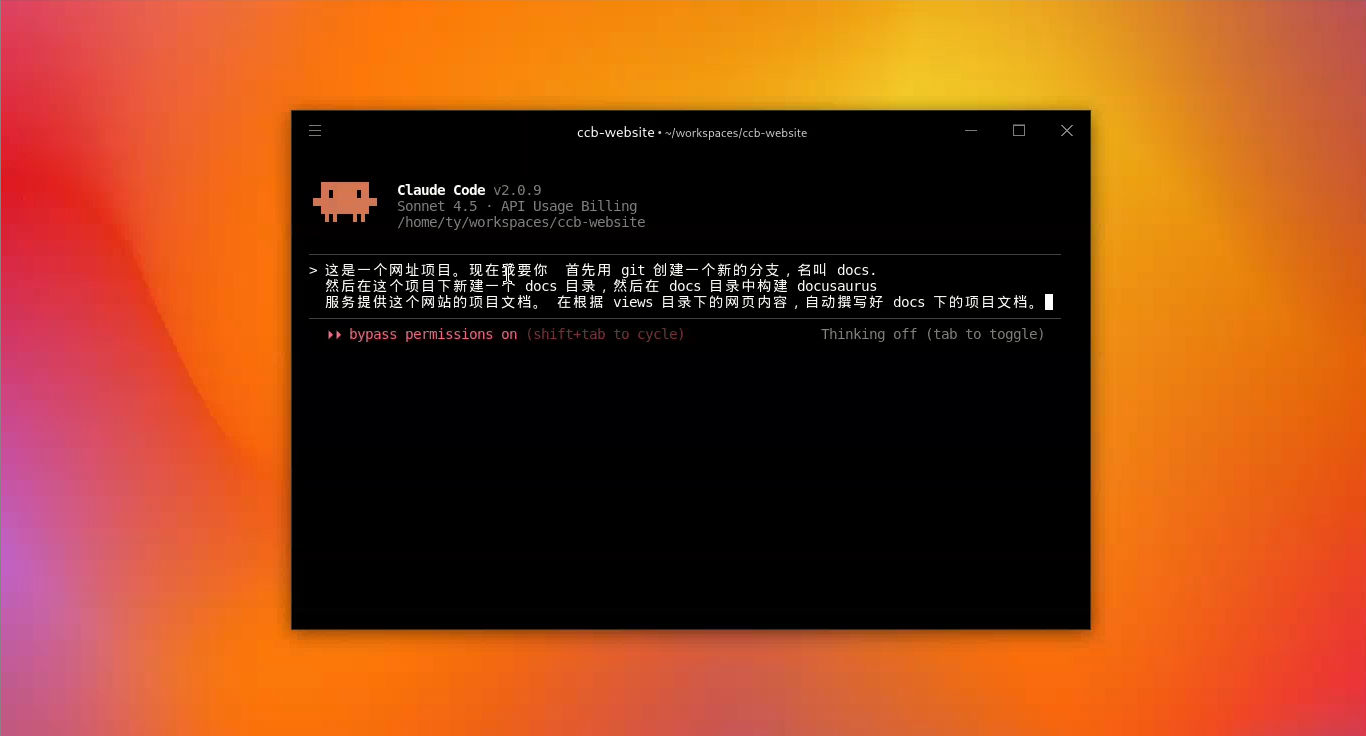
Once the workspace loads, drop in your instructions. Here's what I gave it:
- Create a Git branch — so we can roll back if things go sideways.
- Install Docusaurus — the documentation framework we're using.
- Analyze and write — read through the codebase and generate the doc structure and content.
Step 2: Learning Deep Code's UI Language
Once you hit Enter, things start moving. The trick to working with Deep Code is knowing what the dots and icons actually mean:
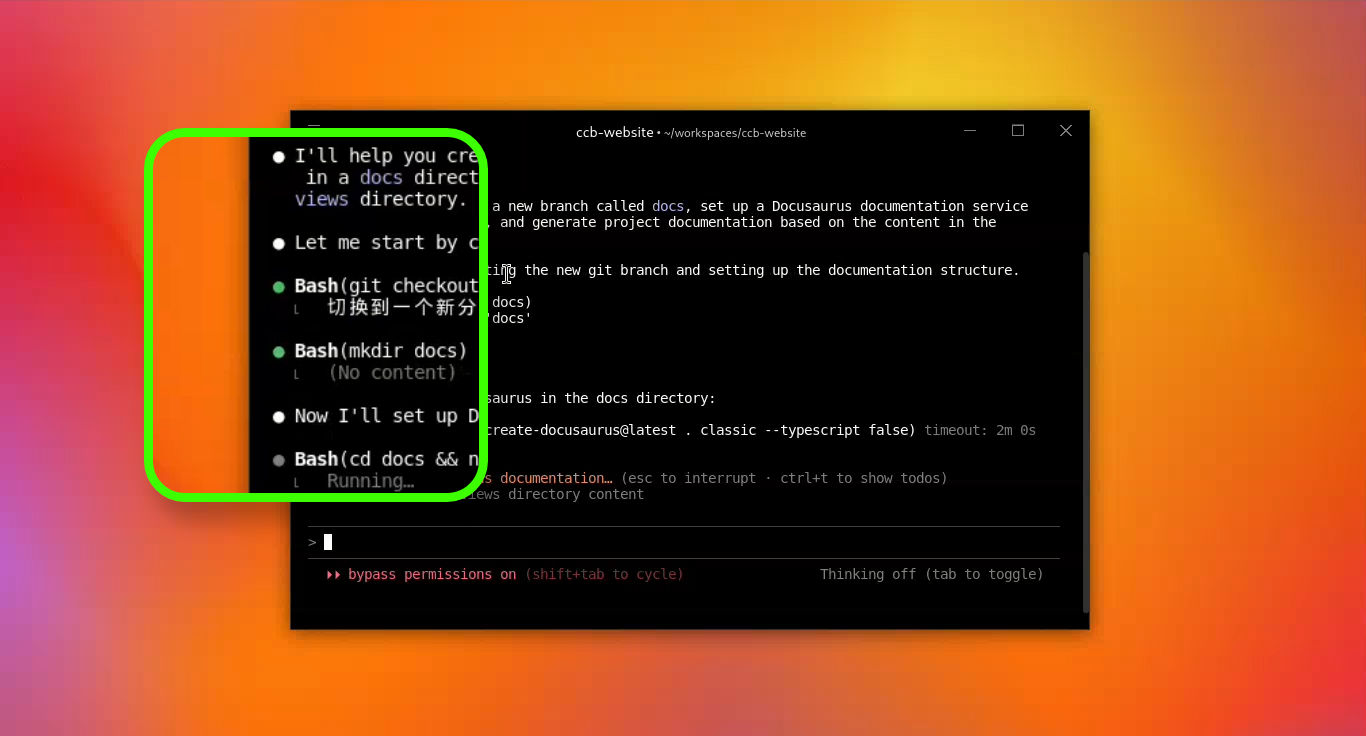
- White dot — feedback or reasoning. It's telling you what it just did, or walking you through its thought process.
- Green dot — a tool call succeeded. You'll see this every time it runs a command and it works.
- Orange-red asterisk — it's thinking. If this sticks around too long, it's usually a network blip.
- Tip — big output gets collapsed by default. Hit
Ctrl + Oto expand or collapse it.
Step 3: Errors and Self-Correction
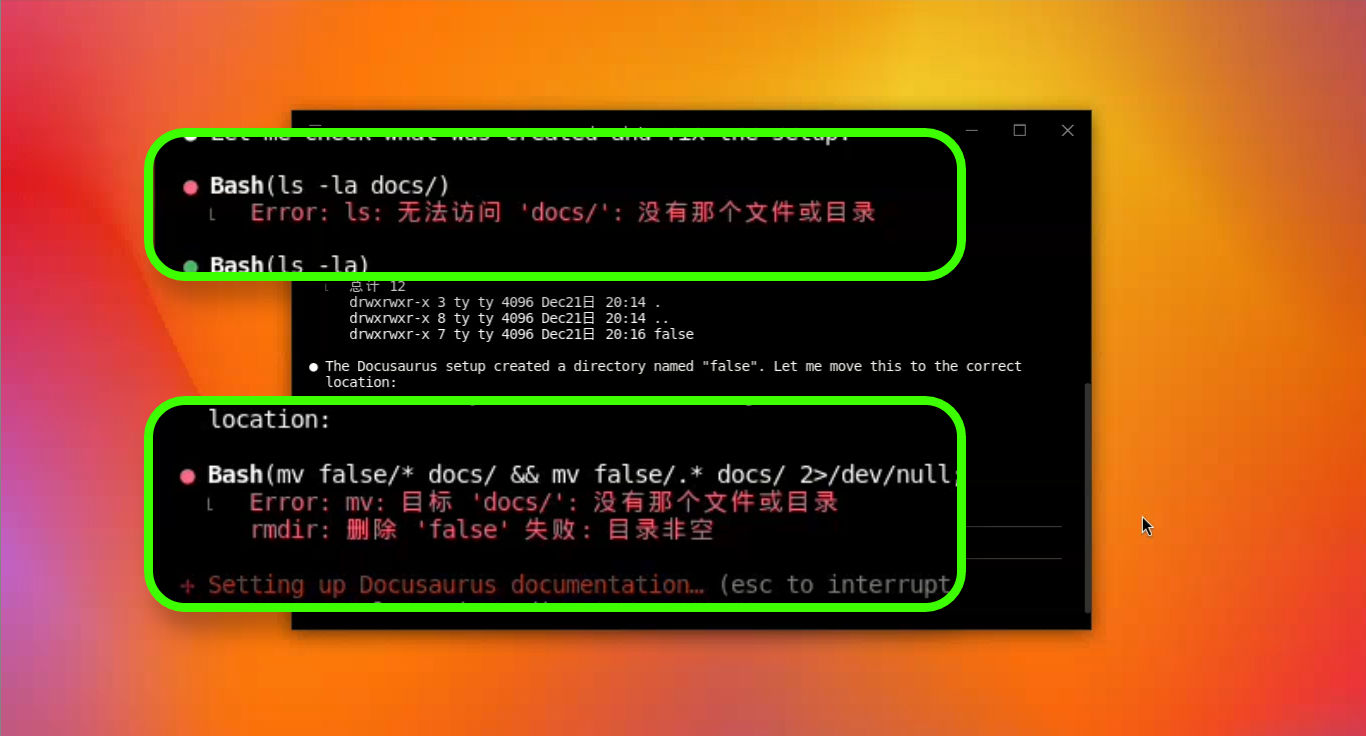
You'll see a red dot at some point. Don't panic — it doesn't mean the task failed. AI gets things wrong too. In this demo, it slipped an extra false into a directory creation command, so the next step couldn't find the path it expected.
The difference is that Deep Code watches its own output. When something doesn't match what it expected, it traces back through the history and fixes the problem on its own — you don't have to catch it.
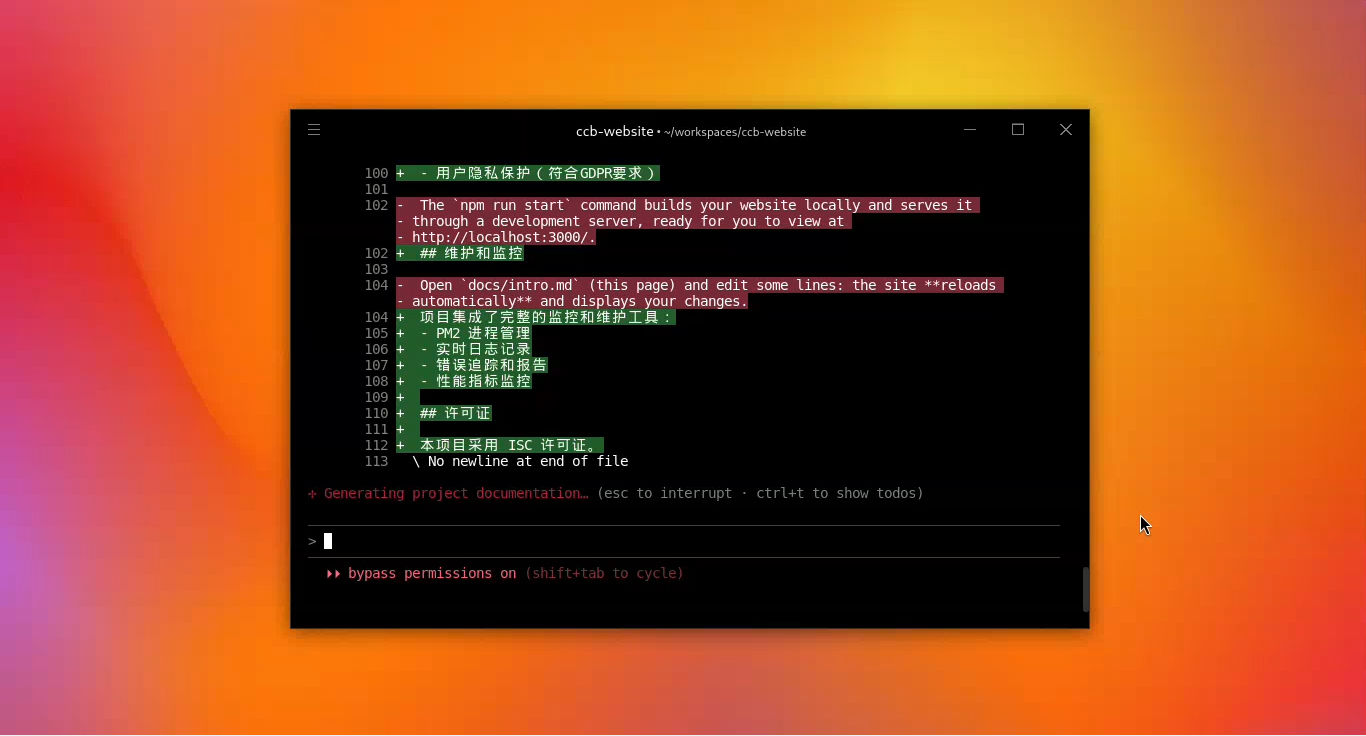
When it edits files, you get a clean color-coded diff: green for additions, red for deletions. Every change is visible at a glance. If a CSS compilation times out during a build, it diagnoses the error and retries automatically.
The Bottom Line
Here's what Deep Code delivered by the end of the session: a fully scaffolded documentation site, sidebar navigation set up, and page content stubbed out and ready to go.
Deep Code isn't a code generator that dumps output and walks away. It's more like a tool that stays aware of your task the whole way through. It checks its own work, catches its own mistakes, and course-corrects without you having to step in.
Think of Deep Code like a sharp foreman on a job site: white dots are him calling out what's happening, green dots mean he's got his tools out and working, and when he puts a nail in the wrong spot (red dot), he pulls it right back out and fixes it — you don't need to stand over his shoulder.
Now that you've seen Deep Code in action, there's one concept that underpins everything it does: context. If you've noticed responses slowing down during a long session, or wondered why starting a fresh conversation sometimes works better, it all comes down to how LLMs(AI Models) manage context. Next up: a deep dive into what context actually is and how to manage it effectively.