Using the File Explorer Panel
Typing @ in the chat input is Claude Code's built-in way to reference files. It works great for one or two files. But as your project grows, the friction adds up:
- Path memorization: You have to remember exact file paths. Deeply nested directories make this painful and error-prone.
- IME interference: If you use an input method editor for non-English text, toggling between the IME and the
@symbol constantly breaks your flow.
The file explorer panel solves both problems. It lives at the top of the left sidebar toolbar — one click and you can browse, search, and insert file references without typing a single path.
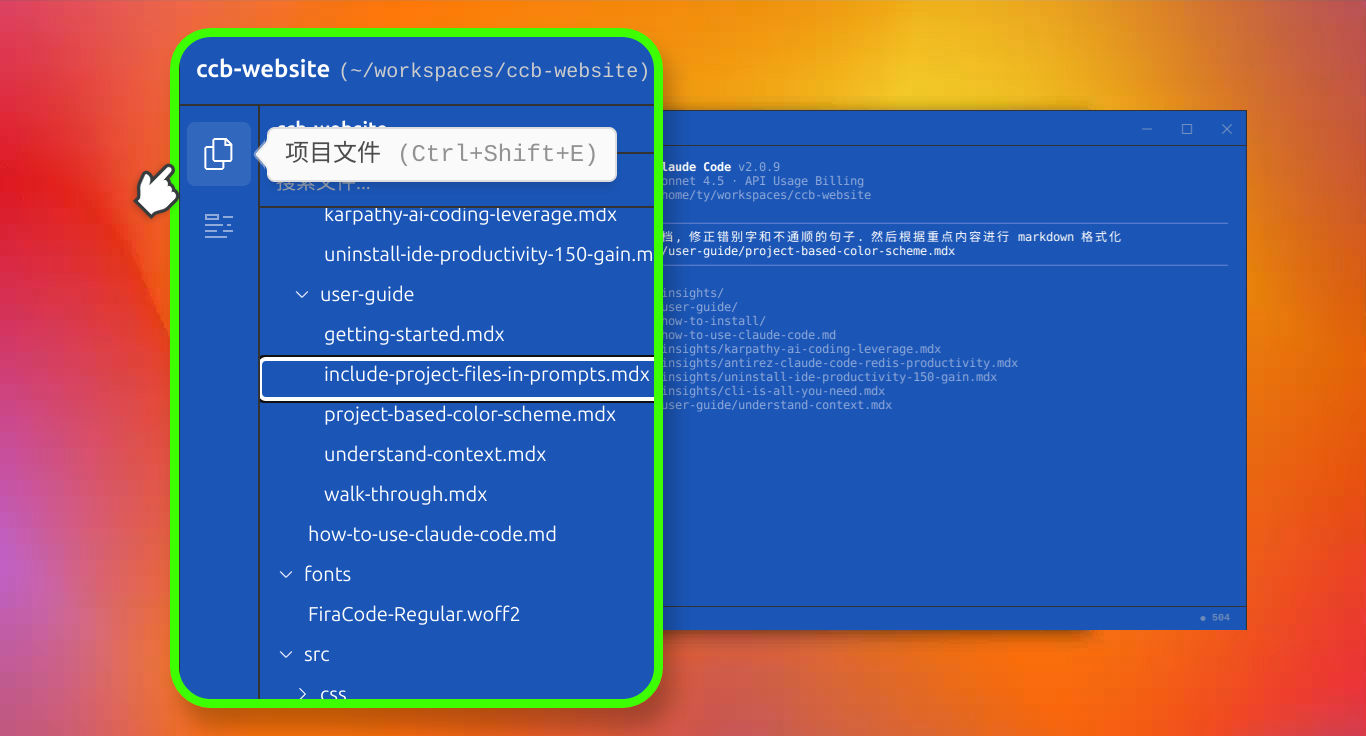
1. Opening the File Explorer Panel
Click the first button in the left sidebar toolbar, or press Ctrl + Shift + E to toggle the panel open and closed.
2. Browsing Files
The panel uses the same tree view you already know from VS Code, Cursor, and other editors:
- Full project view: Every file in your project is visible in the tree. No more guessing at directory structures.
- Git-aware filtering: The panel respects your
.gitignorerules out of the box. Directories likenode_modulesare hidden automatically, so you only see what matters. - Keyboard navigation: Use the up and down arrows to move through the tree, and left and right arrows to collapse and expand folders.
3. Searching Files
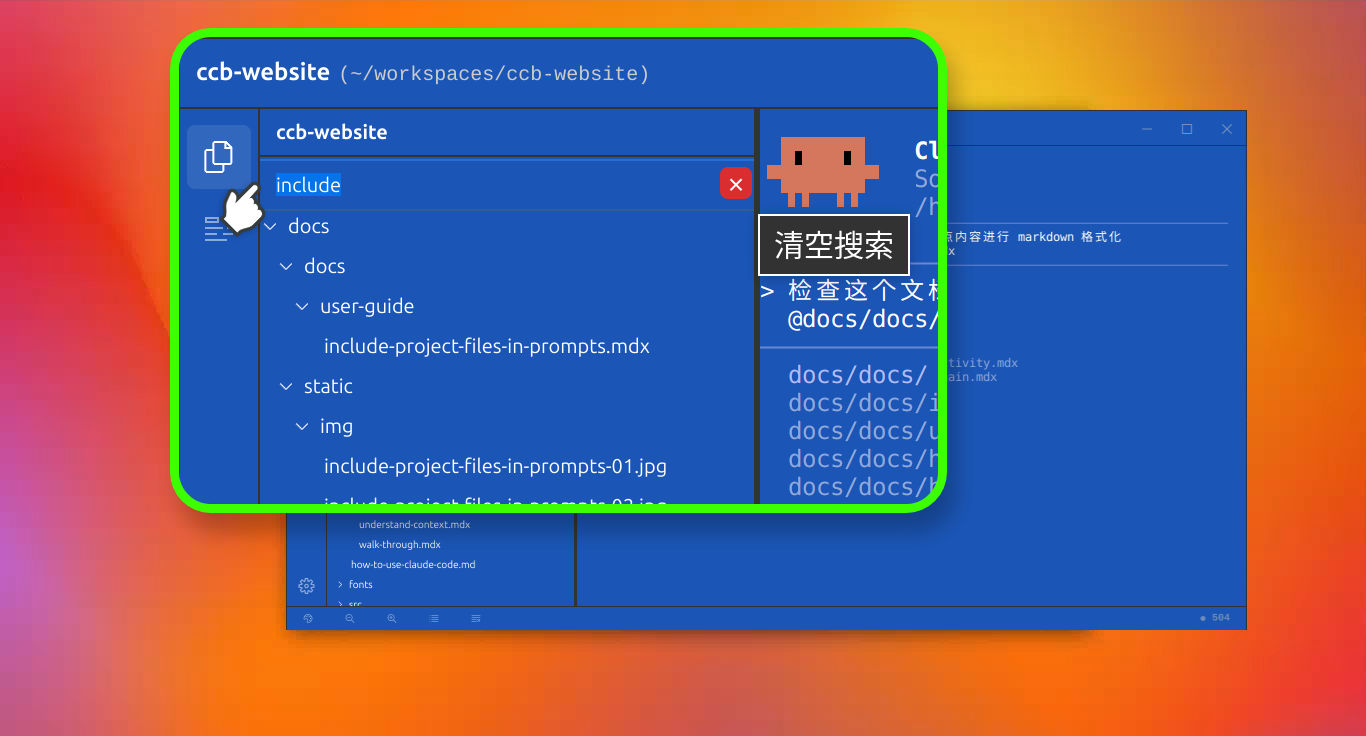
There's a search bar at the top of the panel. Type a partial filename and the tree instantly filters to matching results. It's far faster than clicking through nested folders one by one.
4. Inserting File References
This is the main reason to use the panel. Instead of typing @ paths manually:
- Double-click a file to insert an
@reference directly into the chat input. Deep Code reads the file and includes it in context. - Add multiple files by double-clicking them in succession — great for code reviews or comparing implementations side by side. You can also select a file and press
Ctrl + Enter. - Directories work too: Double-click a folder to insert a directory reference, which gives Deep Code a listing of its contents. You can then tell it which specific files to pull in.
Summary
The file explorer panel isn't just an alternative to typing @ paths — it's the faster way to work. Path lookup, file search, and reference insertion all happen in one visual interface. If you haven't tried it yet, hit Ctrl + Shift + E or click the first button in the left toolbar.