Task History Panel: Browse Past Sessions and Pick Up Where You Left Off
Why the Built-In /resume Command Isn't Enough
If you use Claude Code regularly, you know the drill: you need to jump back into a task you started earlier.
Claude Code ships with a /resume command for this. It lists every past session in the current project, you arrow-key to the one you want, and hit Enter. Claude Code restores that session's context so you can continue where you left off.
It works — until it doesn't:
- You only get a one-line summary. Session titles are often vague ("Finish step three"), and after a week or two you have no idea what that session was actually about.
- You can't copy anything out of a session. If a past conversation had a great prompt or a useful technical discussion, it's locked away. Your only option is to manually retype it.
- Switching between sessions is a pain.
/resumerestores one session at a time. To switch, you have to exit the current conversation, pull up the list again, and hunt for the next one.
The bottom line: /resume treats your session history like a CLI menu — one title per line, zero visibility. That's fine if you only need to resume the last thing you worked on. For anything more, it's tedious.
To fix this, Deep Code introduced the Task History Panel — a visual interface that shows all your past sessions with their full conversation content, so you can browse, search, and reuse anything from your history.
Opening the Task History Panel
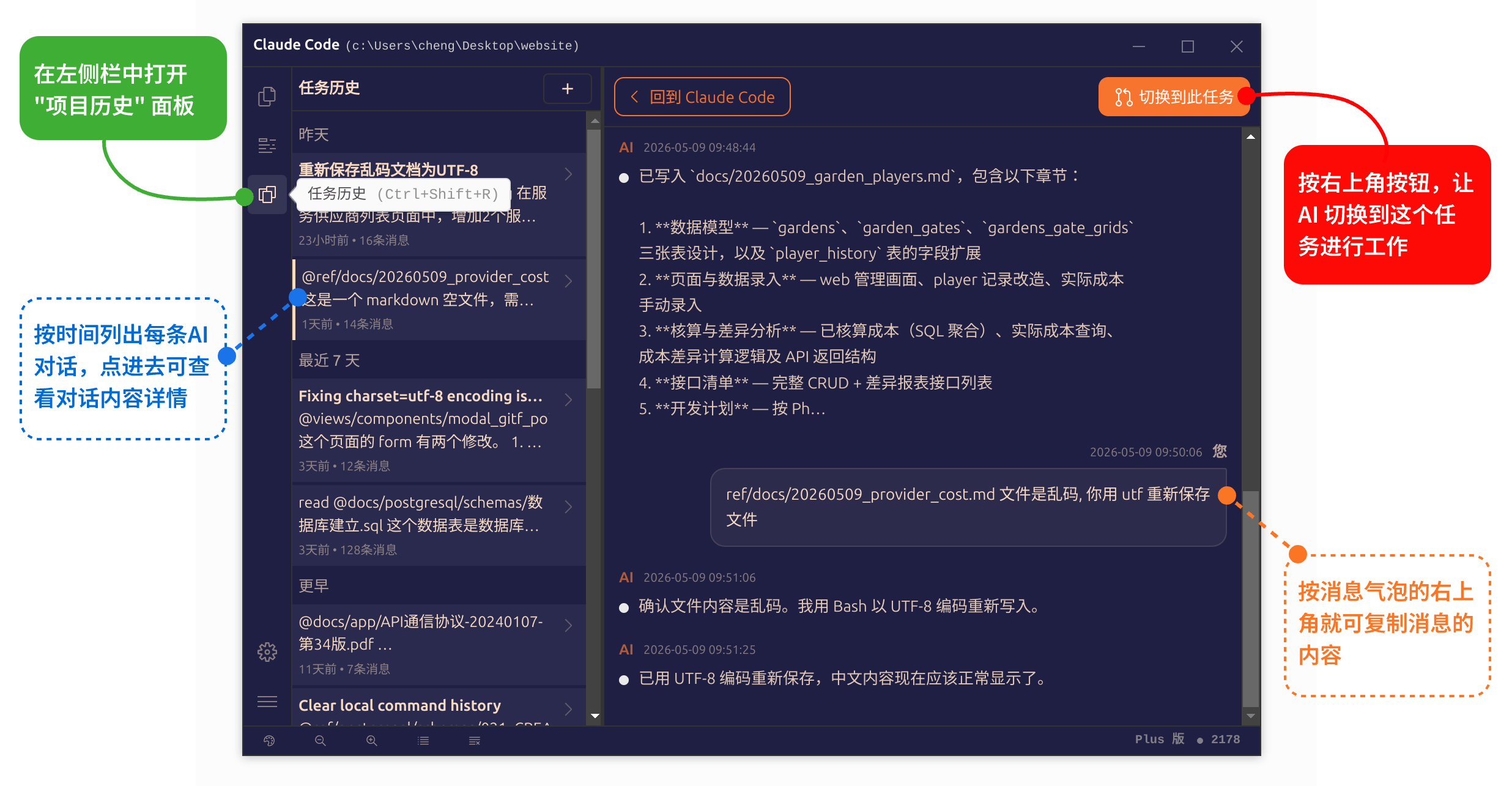
The Task History Panel lives behind the third button on the left sidebar. You can open it two ways:
- Click the third button in the left sidebar toolbar
- Press
Ctrl + Shift + R
The panel slides in from the left. Click the button again or hit Ctrl + Shift + R to close it and return to your conversation.
Using the Task History Panel
The panel uses a split-pane layout — a session list on the left, conversation details on the right.
Left Pane: Session List
All past sessions for the current project appear here, newest at the top. Click any session to select it — the right pane loads its full content immediately. Scroll through the list with your mouse or trackpad to find what you need.
Right Pane: Session Detail
Click a session on the left, and its entire conversation history opens on the right. Every exchange between you and Claude Code is here: your prompts, Claude Code's responses, the commands it ran, the files it touched — all in chronological order.
From this view you can:
- Read the full conversation to see where the task left off, what Deep Code suggested, and which files it changed.
- Decide if it's worth resuming — or if you just need to grab a snippet from it.
- Mine it for reuse: pull out a well-crafted prompt, a requirements doc, or a technical discussion worth keeping.
Copying Messages: Reuse Prompts from Past Sessions
Good conversations don't get old. Requirements breakdowns, prompt templates, architectural discussions — there's gold in your history.
Every message bubble in the Task History Panel has a copy button that appears in the top-right corner when you hover over it. Click it, and the full message text lands on your clipboard. From there, you can:
- Paste a proven prompt directly into your current task so Deep Code picks up with full context.
- Grab a great question or instruction from another session and save it as a snippet template for one-click reuse later.
- Copy a technical solution or code snippet Deep Code gave you into your own notes or docs.
All of this happens inside the panel — no window switching, no friction.
Switching to a Task: Pick Up Right Where You Left Off
Want to resume a past session? Hit the "Switch to this task" button in the top-right corner of the detail pane. Here's what happens:
- The Task History Panel closes.
- Your current conversation context is cleared.
- The target session's full context loads.
- You're dropped right into that task, ready to go.
No commands to remember, no terminal menus to scroll through. For developers juggling multiple tasks and bouncing between sessions, this is dramatically faster than the /resume workflow.
Task History Panel vs. /resume
/resume Command | Task History Panel | |
|---|---|---|
| Visibility | One-line summary | Full conversation content |
| Copy prompts | No | Yes |
| Switching | Arrow keys + Enter | Click "Switch to this task" |
| Access | CLI command | Sidebar button or Ctrl + Shift + R |
| Compare sessions | One at a time, no side-by-side | Browse all titles at once |
| Best for | Quickly resuming the last session | Browsing, comparing, extracting content |
These two aren't mutually exclusive. For a quick resume of something you just worked on, /resume works fine. For everything else — browsing, comparing, pulling out content — the Task History Panel is the better tool.
Summary
The Task History Panel turns Deep Code's session history from a CLI menu into a visual tool. Here's what that gets you:
- Full visibility: every past session, with its complete conversation, right there in front of you. No more guessing what "Fix the bug" was about.
- Instant reuse: one-click copy for any message. Pull out the prompts and discussions worth keeping.
- Seamless switching: jump into any past task with a single click. No commands, no menu.
Lean on the Task History Panel, and your workflow across sessions stays fluid — no context lost, no time wasted.